

FileZilla, a popular and free FTP (File Transfer Protocol) client that offers a user-friendly solution for managing files between your local computer and remote servers.
This guide will walk you through the steps to effectively manage your WordPress files with FileZilla, from installation to advanced features.
Manage WordPress Files with FileZilla
Download and Install FileZilla
Visit the official FileZilla website (filezilla-project.org) and download the appropriate version for your operating system. Follow the installation prompts to set up the software on your computer.
Launch FileZilla
Once installed, open FileZilla. You’ll see a split-screen interface with local files on the left and remote files on the right.
Connect to a Remote Server
To connect to your remote server:
- Click on “File” > “Site Manager”
- Click “New Site” and give it a name
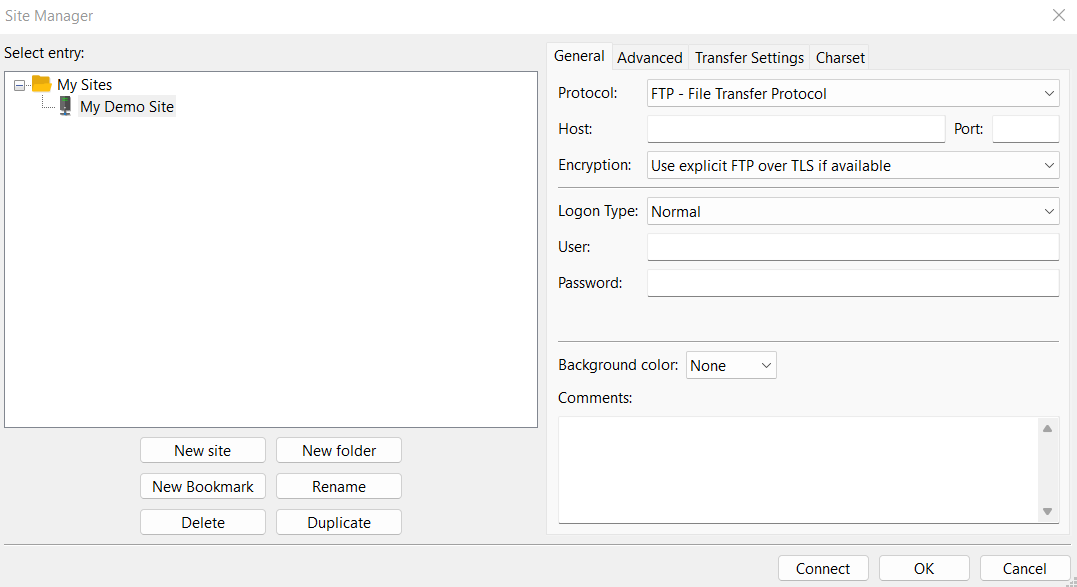
- Enter your server’s details (host, port, protocol)
- Choose the appropriate logon type and enter your username and password
- Click “Connect” to establish the connection
Note: Ensure that your FTP account is unlocked before attempting to connect to the server.
Basic File Management
Navigating Directories
Use the directory trees on both sides to navigate through your local and remote folders.
Double-click on folders to open them.
Uploading Files To upload files
- Navigate to the desired local folder
- Select the files you want to upload
- Drag and drop them to the remote directory on the right
Downloading Files To download files
- Navigate to the desired remote folder
- Select the files you want to download
- Drag and drop them to the local directory on the left
Creating New Folders
Right-click in the file list area and select “Create directory” to make a new folder on either the local or remote side.
Renaming Files and Folders
Right-click on a file or folder and select “Rename” to change its name.
Advanced File Management Techniques
Using Filters
FileZilla allows you to filter files based on name, size, or date.
- Go to “View” > “Directory listing filters”
- Set up your desired filters to show or hide specific files
Synchronizing Directories
To keep local and remote directories in sync:
- Right-click on a local folder
- Select “Compare directories”
- FileZilla will show differences between local and remote folders
- Use the synchronization options to update files as needed
Setting File Permissions
To change file permissions on the remote server:
- Right-click on a file or folder
- Select “File permissions”
- Adjust the permissions as required
Using Bookmarks
Create bookmarks for frequently accessed directories:
- Navigate to the desired directory
- Go to “Bookmarks” > “Add bookmark”
- Name your bookmark for easy access later
Scheduling File Transfers
For recurring file transfers:
- Go to “File” > “Site Manager”
- Select your site and click “New”
- Choose “Scheduled file transfer”
- Set up your transfer schedule and options
Using Queue Management
For large file transfers:
- Add files to the queue instead of transferring immediately
- Go to the “Queued files” tab at the bottom of the screen
- Manage and prioritize your transfers
Tips for Efficient File Management
- Use the search function (Ctrl+F) to quickly find files in large directories
- Take advantage of the “View/Edit” feature to make quick changes to remote files
- Regularly update FileZilla to ensure you have the latest features and security patches
- Use secure protocols like SFTP or FTPS when available for enhanced security
- Familiarize yourself with keyboard shortcuts to speed up your workflow
Conclusion
Managing WordPress files with FileZilla is a very easy process that can significantly streamline your file transfer and management tasks. By mastering these basic and advanced techniques, you’ll be able to efficiently handle files between your local machine and remote servers.
Whether you’re a web developer, content manager, or simply someone who needs to manage files across different locations, FileZilla provides a robust and user-friendly solution. With practice, you’ll find that FileZilla becomes an indispensable tool in your digital workflow, saving you time and effort in your file management tasks.


0 Comments