How to Add a Signature to Your Emails in Webmail (Stackmail)

by | Last updated Oct 28, 2024 | Stackmail Tutorials

how to add signature to webmail

To add a signature to your emails in webmail (Stackmail), you will need to follow these steps:

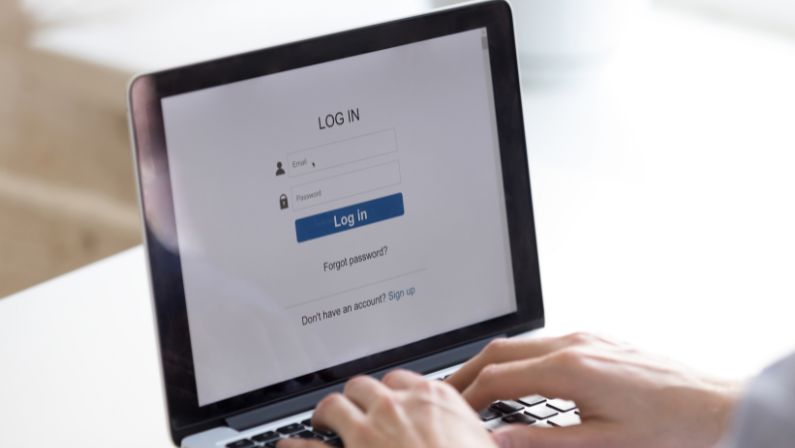
  1. Log in to your stackmail account – usually located at www.stackmail.com
  2. Click on “Settings”, which is usually located on the left side of the screen.
  3. In the settings menu, look for a section called “Identities”.
  4. Click on the “Add” or “Create” button to create a new signature.
  5. Type your signature into the text box provided. You can use basic formatting options, such as bold and italic, to make your signature look more professional.
  6. When you are satisfied with your signature, click on the “Save” or “Done” button to apply the changes.
  7. To use your new signature, simply select it from the drop-down menu when composing a new email.

That’s it.

Subscribe to our YouTube Channel for more of this type of tutorial.

Shop Divi Products

Buy nicely done Divi Layouts, Child themes, and extensions for your next Divi project.

Related Articles

How to Set Up Stackmail Account on Gmail App

How to Set Up Stackmail Account on Gmail App

You have been able to login into your new mailbox, now, here is how to setup stackmail account on Gmail app. This will not only make logging into your mailbox easier but also let you have access to your mailbox at your fingertips. You can always send and respond to...

How to Login Stackmail Mailbox

How to Login Stackmail Mailbox

This guide covers stackmail login. It is an easy, step-by-step guide to help you get started with your stackmail mailbox. To be able to login to your staff mailbox, go to www.stackmail.com Once on the login screen, enter the following details: Username:...

Leave a Comment

0 Comments

Submit a Comment

Your email address will not be published. Required fields are marked *

WP101 - FREE WordPress Tutorials

Enter your email address below to gain access to the FREE WordPress training.

You have Successfully Subscribed!

Pin It on Pinterest