
One of my favorite Divi modules is the blurb module. The blurb module allows you to add an icon or image with text to your page. And with the new Divi update, there are hundreds of icons you can use on your page.
The blurb module gives an option to place the icon above the text or to the left side of the text. Also, you can choose to use preinstalled icons or upload your own image.
In my experience, when you use an icon instead of an image, adjusting the icon size is so easy. All you have to do is increase or decrease the icon’s font size right from within the blurb module’s design tab.
Here is the process
- Go to: Blurb Settings > Design > Image & Icon
- Enable the “Use Icon Font Size” option
- Select your desired icon size using the slider “Icon Font Size” slider.
For an image, the size gets reduced and it is not easy to adjust the size from within the design tab. And that’s the whole reason why I had to do this tutorial.
So, how do you make the left-placed blurb image larger?
Easy.
We’ll use like a single line of CSS code to make this possible.
Making the Left-Placed Image Larger with CSS
You can do so with the following CSS:
// To make the left-placed image larger in Divi Blurb module
.et_pb_blurb_position_left .et_pb_main_blurb_image { width: 100px !important;
}
Pro Tip: Where to Properly Add the Custom CSS Code in Divi Theme Builder.
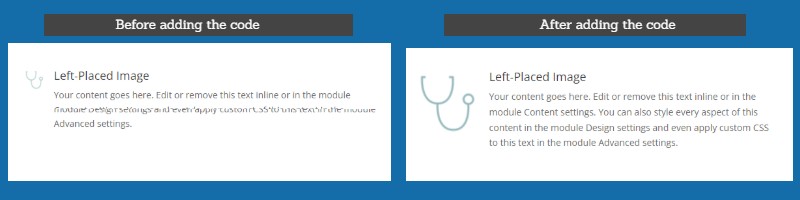
In the above CSS Code, image width is 100px. You can always adjust it to your liking.
I hope this helps.
That’s it for now. To be able to receive more of these tips. Subscribe to my newsletter.
Thanks a lot Patrick. Best regards. Bruno
You are welcome, Bruno.