

In this tutorial, I will show you how to add a Show More/Show Less button that will reveal hidden text after it’s clicked. This simple method will be useful for long texts, where showing full text by default would break the design of a page.
To avoid congesting your website page with long texts, you can hide part of it, enabling your web users to choose whether to display the hidden text. Usually, the hidden text is displayed by clicking on a Show more link or button.
To create Show More / Show Less button we will use custom JavaScript and CSS that will help hide additional text by default.
You can follow this short tutorial or download our ready-to-use section that can be imported to your Divi Library and used on your Divi website page in no time.
This functionality can be used on any Divi module that supports the text field.
In this tutorial, we’ll use the text module.
Once you have inserted the text module, and have added your “long text”, you will need to add CSS Class “pa-toggle-text” under the text module’s Advanced settings tab.
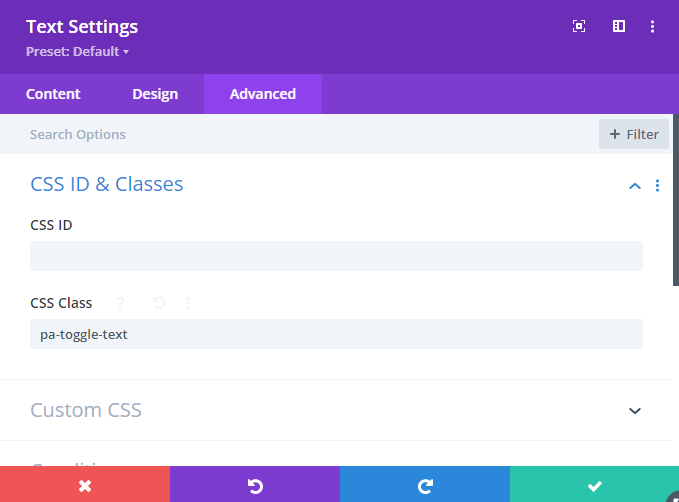
1 Adding Custom CSS
We will add a few lines of custom CSS that will hide and style our additional text together with the “Show more/Show less button”. To add this custom CSS, go to to Divi → Theme Options → Custom CSS.
- Go to Divi → Theme Options → General
- Add the following code to the Custom CSS field
- Click Save Changes
/*collpse and set the height of the toggle text*/
.pa-toggle-text .et_pb_text_inner {
max-height: 200px;
transition: max-height 0.3s ease-out;
overflow: hidden;
}
/*add gradient to the collapsed text*/
.pa-toggle-text .et_pb_text_inner:after {
content: “”;
display: inline-block;
position: absolute;
pointer-events: none;
height: 100px;
width: 100%;
left: 0;
right: 0;
bottom: 0;
background-image: linear-gradient(0deg, #fff 10%, transparent);
}
/*style the expand text link*/
.pa-toggle-text .pa-text-expand-button {
padding: 0.5em;
text-align: center;
color: #666666!important;
}
/*change the curor to a pointed when hovering over the expand text link*/
.pa-toggle-text .pa-text-expand-button span {
cursor: pointer;
}
/*define the font family for the toggle icon*/
.pa-toggle-text .pa-text-expand-button .pa-text-toggle-icon {
font-family: ETMODULES, “sans-serif”;
}
/*set the max height and transition of the expanded toggle*/
.pa-toggle-text .pa-text-toggle-expanded {
max-height: 2000px;
transition: max-height 0.3s ease-in;
}
/*hide the gradient when the toggle is expanded*/
.pa-toggle-text .pa-text-toggle-expanded.et_pb_text_inner:after {
background: none;
}
2Adding custom JS
In this step, we need to add custom JS to our website. This can be added to Divi Theme Options:
- Go to Divi → Theme Options → Integration
- Add the following JS code to < head > section
- Click Save Changes.
<script>
jQuery(document).ready(function() {
var text_expand_text = “Show More”;
var text_collapse_text = “Show Less”;
var text_expand_icon = “3”;
var text_collapse_icon = “2”;
jQuery(“.pa-toggle-text”).each(function() {
jQuery(this).append(‘<div class= “pa-text-expand-button”><span class= “pa-text-collapse-button”>’ + text_expand_text + ‘ <span class= “pa-text-toggle-icon”>’ + text_expand_icon + ‘</span></div>’);
jQuery(this).find(“.pa-text-collapse-button”).on(“click”, function() {
jQuery(this).parent().siblings(“.et_pb_text_inner”).toggleClass(“pa-text-toggle-expanded”);
if (jQuery(this).parent().siblings(“.et_pb_text_inner”).hasClass(“pa-text-toggle-expanded”)) {
jQuery(this).html(text_collapse_text + “<span class= ‘pa-text-toggle-icon’>” + text_collapse_icon + “</span>”);
} else {
jQuery(this).html(text_expand_text + “<span class= ‘pa-text-toggle-icon’>” + text_expand_icon + “</span>”);
}
})
})
})
</script>
Well, that’s it! We hope you enjoyed reading this tutorial as well as the free section we are sharing with you. There are more cool tutorials to come, so please make sure to sign up for our newsletter.
this is not working for me. it is not collapsing anything. help!
Hello,
I have tested the code again. And it works. If you need further help from me, I’d be happy to give it to you. Just reach out to me via info@divibanks.com
Hi dear,
I’ve downloaded the free version and I thank you because it work very well.
I’m changing in Custom JS Code the text of the button (Show More – Show Less) with other text, but nothing change.
Can you help me?
Hello.
Sorry for the late response. May I know the words you are changing them to. Could be a word conflicting with WordPress core, or a plugin.