

The Divi video module lacks the function to autoplay a video on page load. A user, therefore, has to click on the video so it can start to play. In this tutorial, I’ll be showing you how you can autoplay a video in Divi without using a plugin.
You can choose to follow this video tutorial, or go through the entire post.
How to Autoplay a YouTube Video in Divi
To be able to autoplay a YouTube video on page load in Divi, you will need to use a Divi Code Module instead of the Divi Video Module.
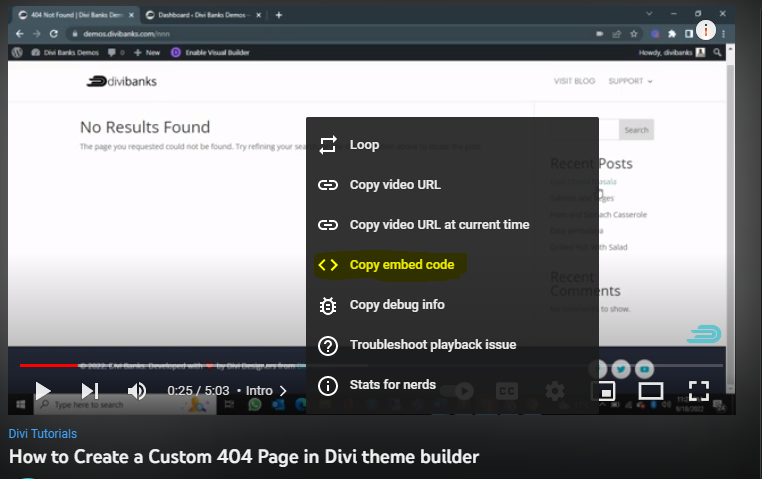
We’ll embed a YouTube video in the code module by slightly altering the code. First, go to YouTube and grab the embed code of the video you want to use.
To get the embed code, right-click on the video and then copy the embed code.
Next, add the code module on your page and paste the embed code in it.
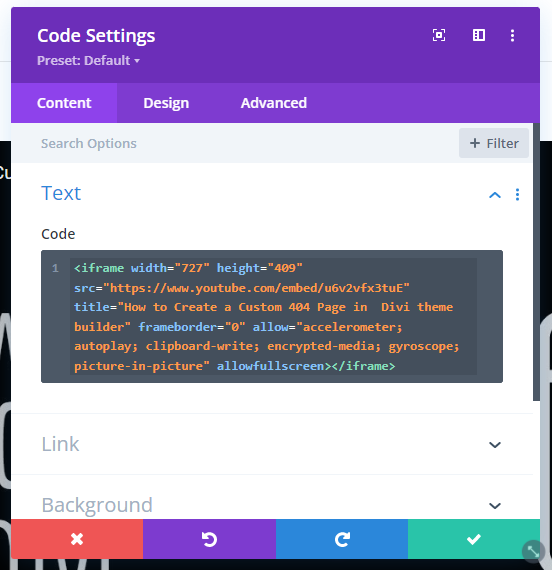
To enable autoplay, you need to add this code behind the video URL.
?autoplay=1&mute=1
It will look like this:
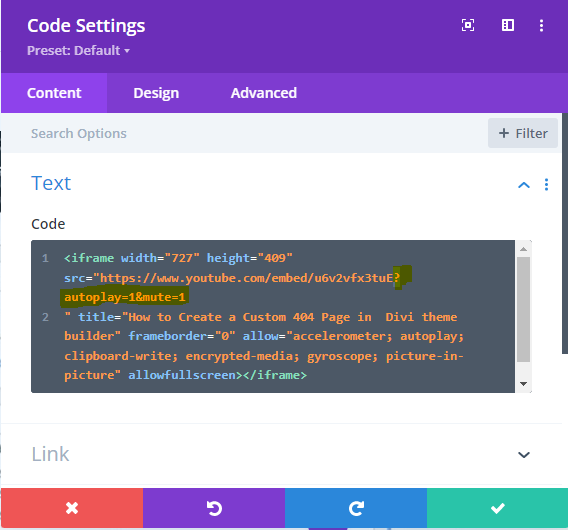
This functionality will autoplay the video.
However, the video will be muted and the website visitor has to enable the audio in the video window.
Autoplay with audio will not work for some browsers. For example, it may not work for Chrome. You can test this by making mute=1 to mute=0 in the code.
How to Autoplay An Uploaded Video On Your Server
To enable autoplay on an uploaded video, we’ll use the video as a background on any Divi module. The best module to use is the Divider module.
Here is how to do it:
Add the Divider module to where you would want to add the video.
Disable the divider visibility.
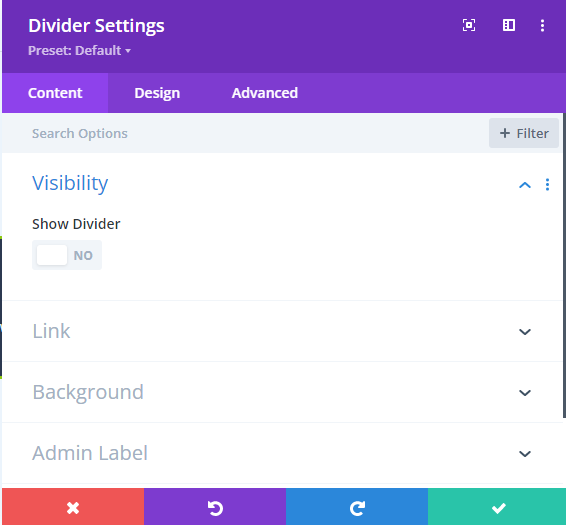
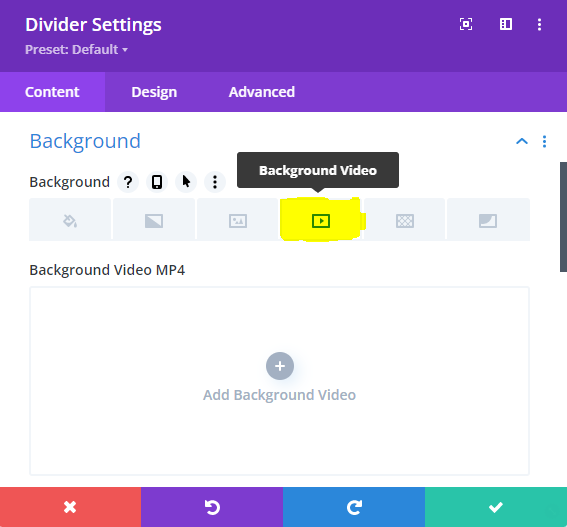
On the Divider module, go to the background video tab and upload your video.
Finally, go to the design tab and scroll down to Sizing and use the following settings:
Width: leave it blank
Height: 600px
And, that’s how to autoplay a video in Divi website.

0 Comments