
By default, WordPress doesn’t allow for SVG file uploads. This becomes a problem when you want to add SVG files in Divi.
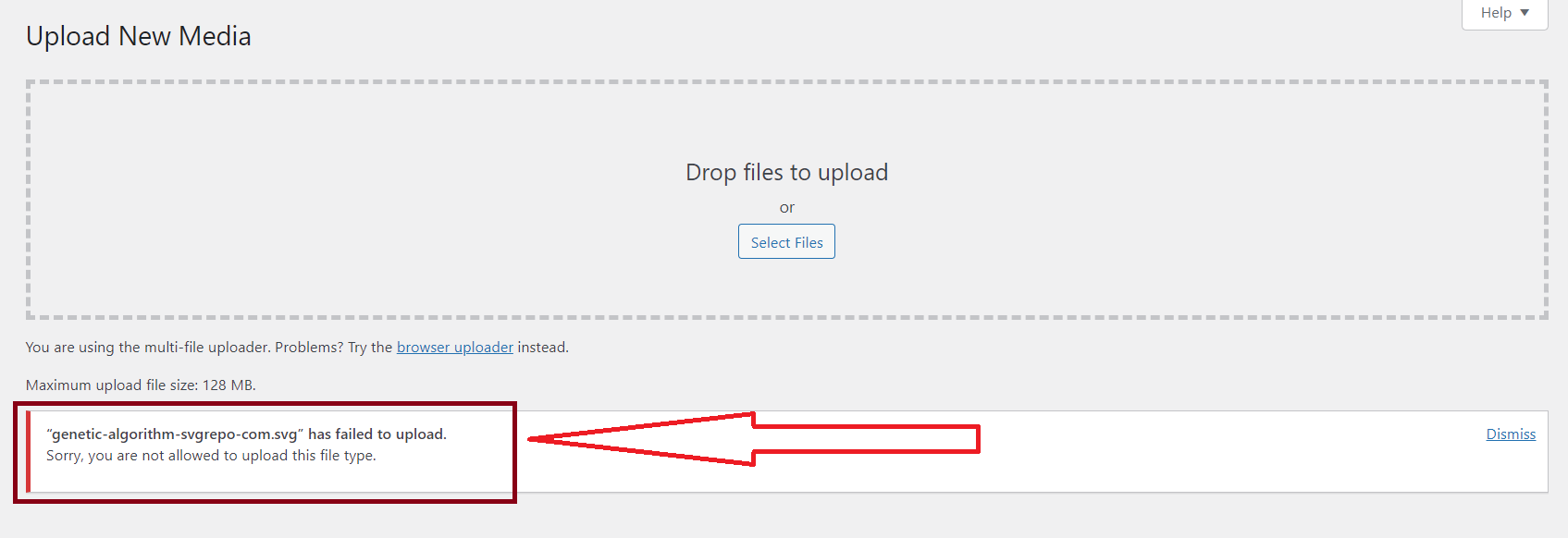
If you are reading this post, chances are that you tried adding an SVG image file to your Divi website and ran into an error like this:
What is an SVG File?
SVG stands for scalable vector graphics. It is a web-friendly vector-based file format used to render 2D images on the internet.
You can identify SVG files by their extension – .svg.
Unlike other popular image formats like PNG, JPEG, and JPG – which store image information in form of pixels because they are raster-based formats – SVGs store graphics information as a set of points and lines.
This means no matter how SVG files are reworked, zoomed, or resized, they don’t become blurred and pixelated like PNG, JPG, and other raster images.
What is an SVG File Used for?
Because SVG files remain the same for life, they are perfect for website icons and logos.
An excellent advantage of SVG is that the text in them can be read by search engines like Google, so SVG files are used for making infographics and illustrations.
How to Add an SVG Image File in WordPress
You can enable your WordPress website to start supporting SVG files either with the help of a plugin or with code. We’ll look at both the instances.
Method 1: Add SVG Files in Divi Using a Plugin
In this method, we’ll use a plugin called SVG Support to allow us to display inline SVGs in WordPress posts and pages.
First, you need to install and activate the SVG Support plugin.
Once you have activated the plugin, go to the Settings » SVG Support page to configure plugin settings.
While on the settings page, check the box next to the ‘Restrict to Administrators?’ option. This will allow only a site administrator to upload SVG files in WordPress.
You will now be able to add SVG files in WordPress and Divi.
Method 2: Add SVG Files in Divi With Code
The method involves adding a simple function in the functions.php file to enable us to start uploading SVG image files to WordPress websites. Here is the code:
// Allow SVG uploads

function allow_svgimg_types($mimes) {
  $mimes['svg'] = 'image/svg+xml';
  return $mimes;
}
add_filter('upload_mimes', 'allow_svgimg_types');
Just copy and paste it anywhere in your Divi Child theme’s functions.php file. You can also use Code Snippets plugin to add the code to your theme’s functions.php file.
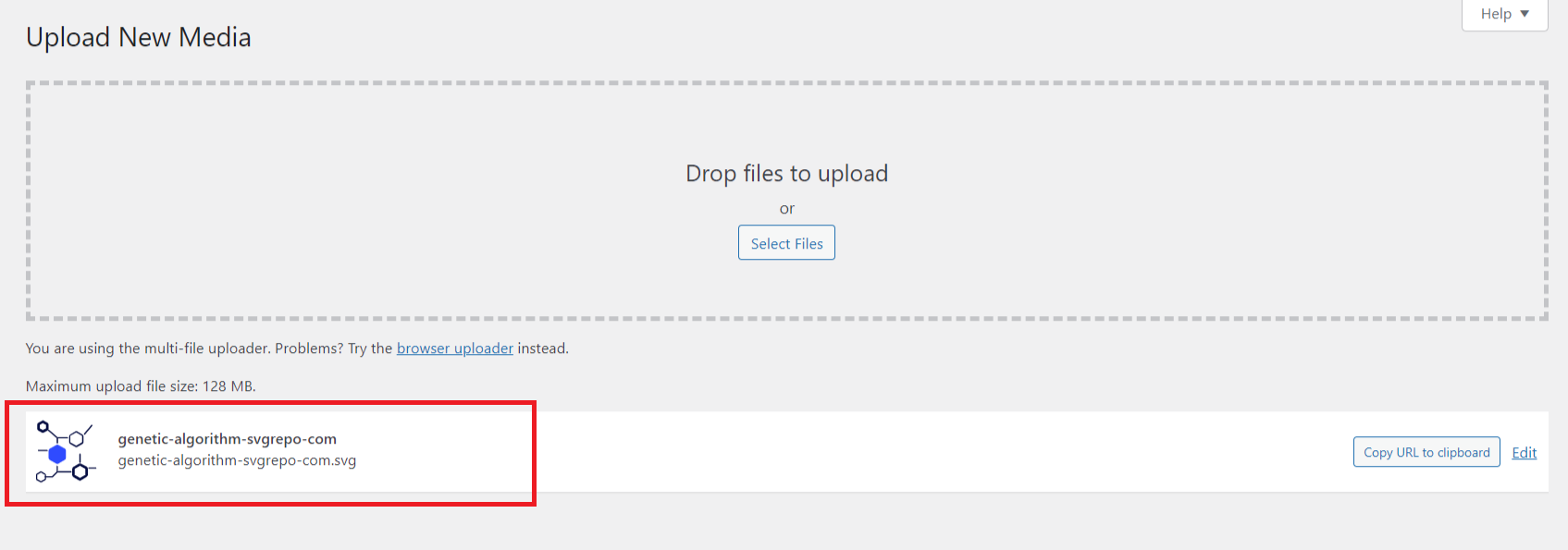
And that’s it – now you can choose files with SVG format and upload them in WordPress.
Final Words
Adding SVG image files to WordPress sites is an important requirement for many website owners and designers.
While WordPress doesn’t allow SVG uploads by default, this limitation can be easily overcome by using a plugin like SVG Support or adding a simple code snippet to your theme’s functions.php file.
With these methods, you can seamlessly add SVG files in Divi, ensuring your website remains visually appealing and optimized for search engines, without compromising on image quality or resolution across different devices and screen sizes.



0 Comments