

What is a Child Theme?
A child theme is an active theme that inherits the look, feel, and functions of the parent theme that’s inactive.
When a modification is made to the child theme, they are kept separate from the parent theme’s files – ensuring that a new update on the parent theme doesn’t interfere with your modifications.
It is the best method of making significant changes to your Theme while still being able to accept updates from your original Theme developer.
Why is a Child Theme important?
One of the best ways of making sure that your WordPress website stays clear of cyber-attacks is by updating the WordPress core, plugins, and themes. It is a brilliant thing to do, but also dangerous.
For example, when you update a WordPress theme, the entire theme files are deleted, and the latest version is installed where the old one used to sit. That means, all the customizations made to the theme files get deleted – something that might mess up your website design.
So, to avoid that from happening, you need a child theme.
Does Divi Need a Child Theme?
Divi, just like any other WordPress theme gets deleted, and a new version is installed, deleting all the customizations made to the theme files.
So, yes, Divi does need a child theme.
It is important to note that if you place customizations into the Divi Theme Options Panel, like Custom CSS, they are safe because the Theme automatically saves them into the database. And the database is never touched during the update process.
When Do You Need Divi Child Theme?
If you’re doing any of the below customizations, then your changes are at risk of being deleted when you update Divi Theme if you do not use a Divi child theme.
- If you are making changes to Divi’s PHP theme template files such as a header.php, footer.php, single.php, 404.php, etc.
- If you are adding custom functions or code snippets to functions.php.
- If you are customizing the theme’s javascript files or adding lots of new javascript.
- If you are making edits/additions to ANY file that is within Divi’s theme files.
- If you don’t want clients to see any code that you saved in Theme Options so that they don’t mess with it and break something.
Types of Divi Child Themes
There are two types of Divi Child Themes:
- ZBlank Divi Child Theme
- ZPremium Divi Child Theme
Blank Divi Child Theme
A blank child theme, usually referred to as a standard child theme, or “bare bones” child theme, is comprised of at least two files, style.css and functions.php that is added to a WordPress installation after the parent theme.
These files will take over the functionality of the parent theme and override certain files in order to keep the site modifications and functionality made by the web developer.
You can create your own child theme from scratch, use a child theme generator, use a plugin or download our free blank child theme.
We’ll get to that in the next section.
Premium Divi Child Themes
A premium Divi Child Theme is a fully designed website template that are created and sold to help give Divi web designers a starting point for a new web design project.
There are lots of 3rd party Divi developers that create premium Divi child themes that you can purchase from marketplaces like Divi Cake and Divi Marketplace by Elegant Themes.
The premium Divi child themes have the same files, style.css and functions.php, except with more code in them.
Also, they have additional files with customizations as well.
How to Create a Divi Child Theme
There are four different methods of creating a Divi child theme:
- Zusing our free blank Divi child theme (easiest)
- Zmanually with code
- Zusing a divi child theme generator
- Zusing a WordPress plugin
1. Download Free Blank Divi Child Theme
The easiest way to get a child theme on your site is to use our free blank Divi Child theme. This child theme has nothing but the essential elements ready for you to add your own customizations.

Once you’ve downloaded the child theme, you can install and activate it, and use it as-is. Or, you can customize the name, author, links, etc. — and then add your custom styling, custom functions, etc.
2. Creating a Child Theme Manually
In this section, you will learn how to manually create a Divi Child theme from scratch. This method is great for aspiring WordPress developers.
For you to become an experienced WordPress developer, it is recommended that you know how to create a child theme from scratch and also understand how it works.
Well, this sounds a bit technical, but trust me, it is easier than you may think.
We are going to manually create Divi Child theme in three simple steps.
Let’s dive in.
Step 1: Create Style.CSS File
We learned that a child theme is made up of at least two files: style.css, and functions.php.
We’re going to start with the style.css file.
This file is for telling WordPress the details of your child theme, and can also be used to add custom CSS that you want included in your child theme.
Here is how to create the style.css file:
Create a folder on your computer and name it Divi Child Theme.
Then, create a file within the folder and name it style.css. The name has to be style.css EXACTLY for WordPress to read it correctly. To create the file you can use a text/code editor like Notepad++. Or you can use the default text editor tool that comes on your computer. If you are having difficulty creating a file from scratch, you can download our sample style.css file for free and edit it. Once downloaded, unzip then add to the folder you just created in the steps above.
Next, add the following to the style.css file:
Step 2: Creating the Functions.PHP File
The second important file for a child theme is the functions file. This is for supporting Divi’s stylesheet as well as for any additional functions you’d like to add.
Here is how to create the functions.php file:
Create another file in the Divi Child Theme folder and name it functions.php
Also, you can download a sample functions.php file here.
Next, add the code below to your newly created file, and optionally add any custom functions. If you downloaded our sample file from above, you don’t need to do anything further unless you would like to add custom functions of your own.
function divi__child_theme_enqueue_styles() {
wp_enqueue_style( ‘parent-style’, get_template_directory_uri() . ‘https://1cjy3t17q2e1435g023mo061-wpengine.netdna-ssl.com/style.css’ );
}
add_action( ‘wp_enqueue_scripts’, ‘divi__child_theme_enqueue_styles’ );
//you can add custom functions below this line:
Step 3: Creating a Screenshot
The last part after creating the style.css and functions.php files is to create a screenshot. I’m petty sure you don’t want a blank space where the image should be on the WordPress themes page.
The screenshot should have dimensions of 880x660px, either as a .png or.jpg file type.
Also, the screenshot should be named exactly as screenshot.png or screenshot.jpg for WordPress to recognize it.
Once you’ve added your screenshot image, your Child Theme folder should look like this:
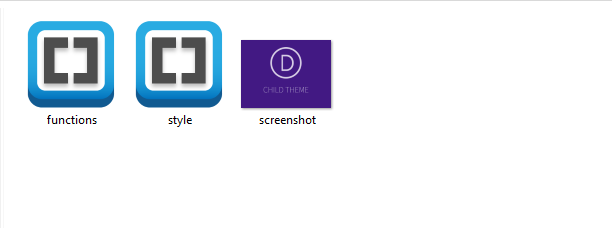
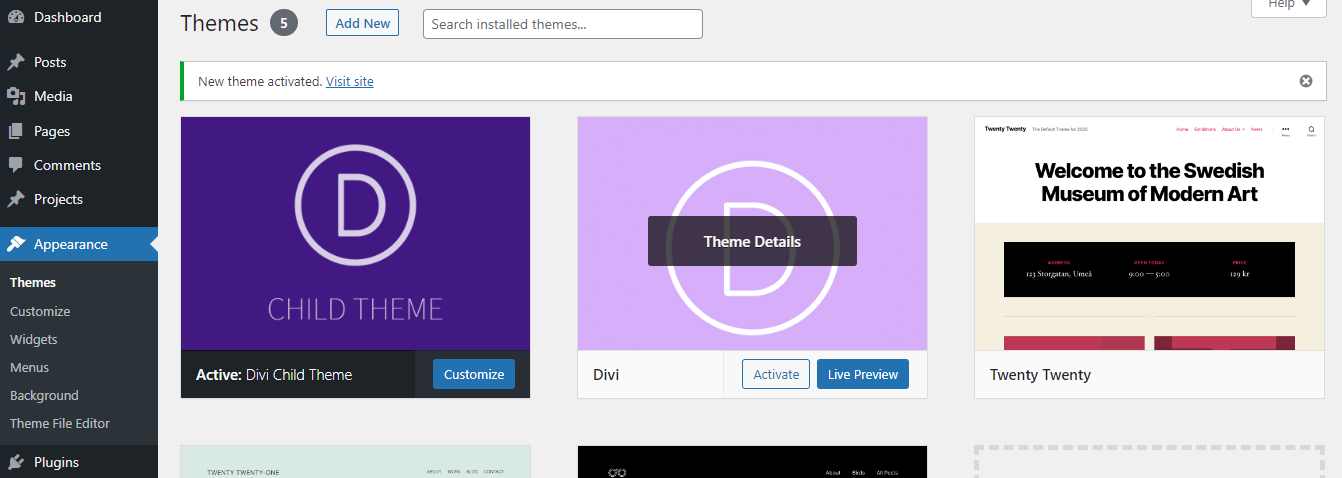
You can upload your Divi Child Theme to your WordPress website the same way you uploaded Divi: Appearance > Themes > Upload, then click Activate!
Editing Template and Other Theme Files of a Divi Child Theme
Thinking about making customizations to the Divi Child Theme files? Well, we are about to get into it.
Actually, the way it works is for any file that is in your child theme that is also in your parent theme, WordPress will use that file instead. The exceptions are the style.css and functions.php files. Both the parent and the child files are used there.
If you want to add any custom functions to your Divi child theme, you just need to write them in your child themes functions.php. But for editing other files, you’ll need to go the extra mile.
Let’s look at it step by step.
For example, you have created a Divi child theme. Now you want to change how 404 page is displayed in the Child Theme. The 404 page page template is located at wp-content/divi/404.php
Step 1: Create a 404.php in your child theme folder. But to ensure it will overwrite the parent theme we have to follow the exact file name & structure.
Step 2: Create a folder and place the file inside that folder. Make sure the path looks exactly like the parent theme.
Parent Theme : divi/404.php
Child Theme : divi-child/404.php
Step 3: Now you can write your own code in the 404.php and it will overwrite parent file.
Using this method you can customize and overwrite any template of parent theme. Make sure file name and folder path are the same.
This may look a little bit tricky for now, but with time, you will get used to it. Continue playing around with it and you will become a child theme editing pro in no time.
3. Using a Divi Child Theme Generator to Create a Child Theme
This method basically involves the use of already available online tools to generate Divi Child Themes.
These child theme generators let you add your theme information, including the image you want for the screenshot, then generate a blank child theme with the three basic files: style.css, functions.php, and screenshot.png
Here are some of the Child Theme Generators you can use to create a child theme:
4. Using a Child Theme Plugin to Create a Child Theme
The fourth and final method for creating a Divi child theme is to use a plugin. There are lots of free plugins that you can use to create a Divi child theme quickly and easily.
Below are some plugins to consider when using this method:
FAQs: Divi Child Themes Questions
Still have questions about Divi Child Themes that you’d want answers to? Well, we have answered some of theme in this section. If you still have more questions (not covered in this section), use our comment section to engage with us. We’ll be happy to help.
Do I need a Child Theme for Divi?
If you intend to make advanced customizations, then a child theme would be necessary. This is to avoid losing your customizations whenever there is a new theme update.
What is the difference between a parent theme and a child theme?
A parent theme is the main theme that you want to make customizations to while a child theme is the method of safely storing customizations that won’t get deleted when you update the parent theme.
A Parent theme can exist without a child theme, but a child theme must point to a specific parent theme.

A very good read. And, thank you for the free blank child theme 🙂
Thank you. And you are so welcome.
Thanks for this guide. I’ve just started to use Divi and I think it’s really a great idea to have a child theme.
I’m glad you found the article helpful. Thank you so much.