

If you are reading this, then it means you’ve gotten tired of having to scroll through a long text, back and forth for you to access the Divi text module editor toolbar.
In this short tutorial, I will show you how to quickly solve the issue using a simple custom CSS code.
Take a look at this:
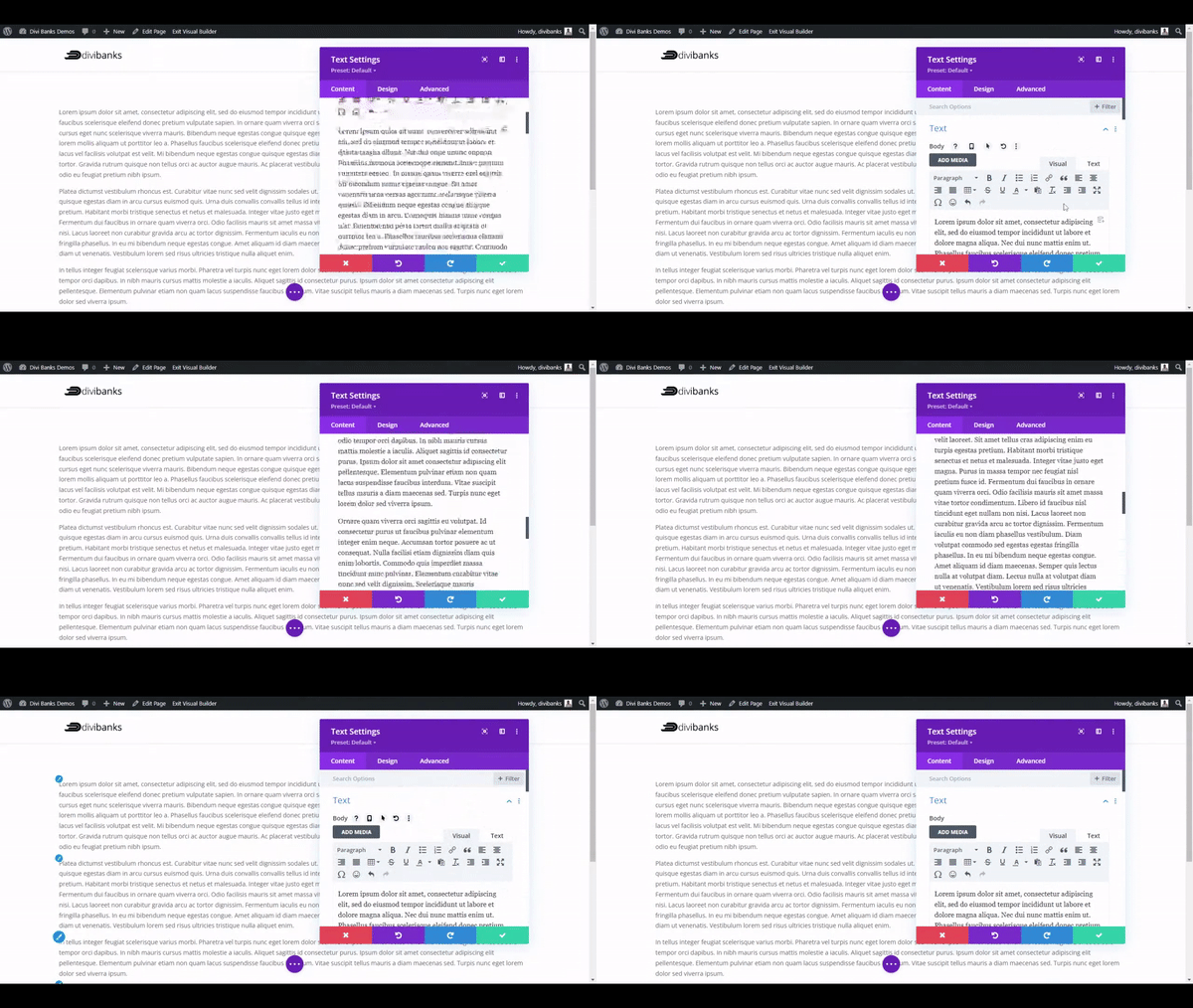
The above is the default Divi text module editor. Notice that the toolbar disappears on scroll – making it difficult to format a long text within the text module.
To fix this, we’ll add the Custom CSS Code below.
Go to Divi > Theme Options > Custom CSS and paste the CSS Code below.
.mce-top-part {
position: sticky!important;
top: -60px;
}
After adding the CSS Code, this should be the result:
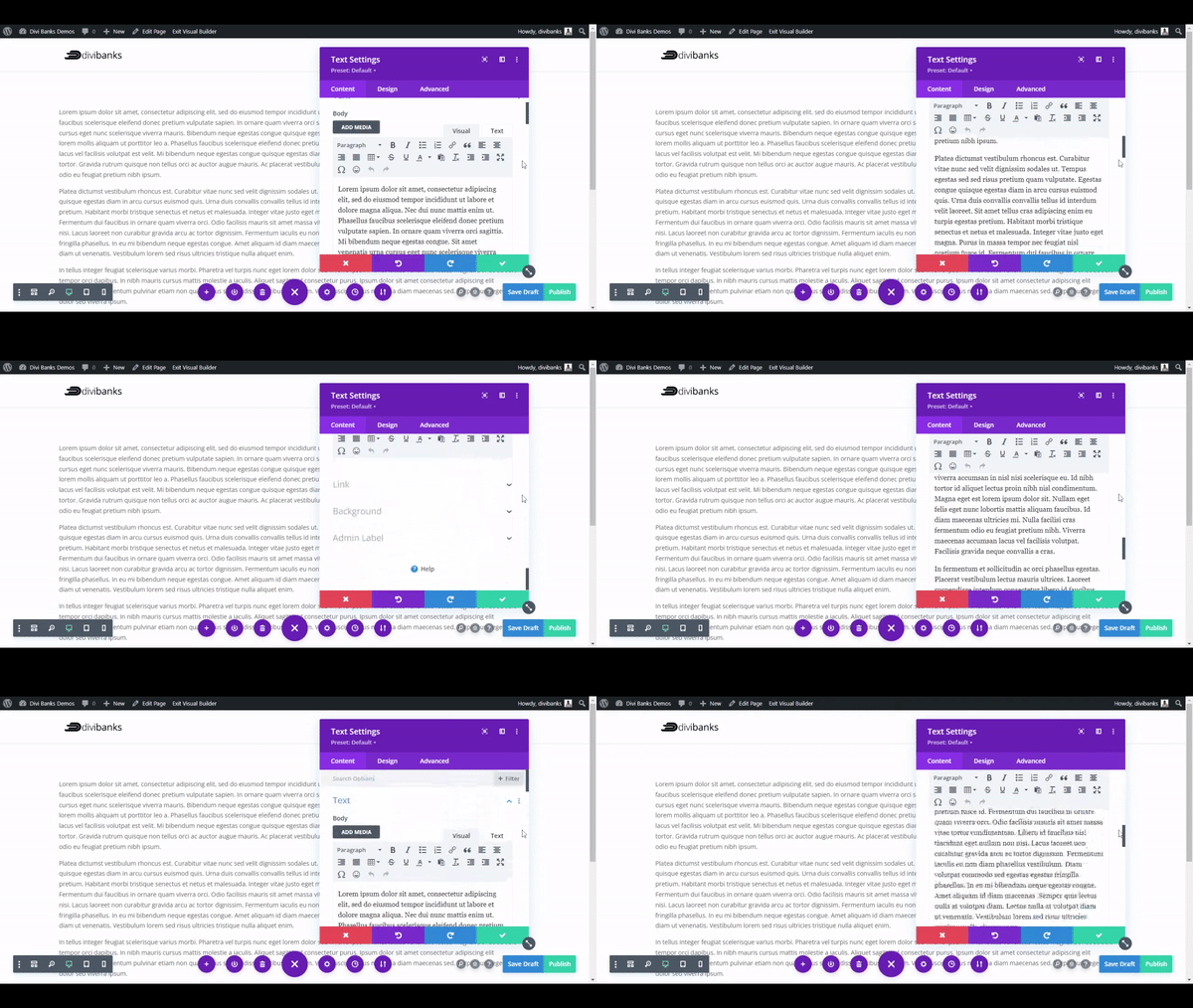
Note that the above solution works only for Visual Builder, but not backend builder.
For backend builder, you will need to paste the below code in your child theme functions.php:
add_action('admin_head', 'divi_help_wp_admin_css');
function divi_help_wp_admin_css(){
    echo '<style>
        .mce-top-part {
            position: sticky!important;
            top: -60px;
        }
    </style>';
}
Well, that’s it! We hope you enjoyed reading this tutorial. There are more cool tutorials to come, so please make sure to sign up for our newsletter.

0 Comments