

Want to learn how to install Divi Theme? Here is a perfect guide designed just for that.
By now, you already know what Divi Theme is, and it’s either you have purchased it and would want to go on with installing it, or you just want to know how everything else works before you can buy the Divi theme.
Either way. This tutorial has been designed to help you understand how to install and activate Divi Theme on your WordPress website.
Step 1: Download Divi Theme Installation Files
This is the most important step.
Just like any other WordPress theme, you will need to have the Divi Theme files for you to be able to install it on your WordPress website.
You need a membership account with the creators of Divi, Elegant Themes, which you can create here.
Once you have created an account and have purchased Divi membership, with just one click you can download the Divi installation file in ZIP format.

This is required to install the Divi theme in WordPress.
Step 2: Install Divi Theme and Activate it
To install Divi theme, go to your WordPress administration dashboard.
Go to https://yoursiteurl.com/wp-admin to access your WordPress admin dashboard.
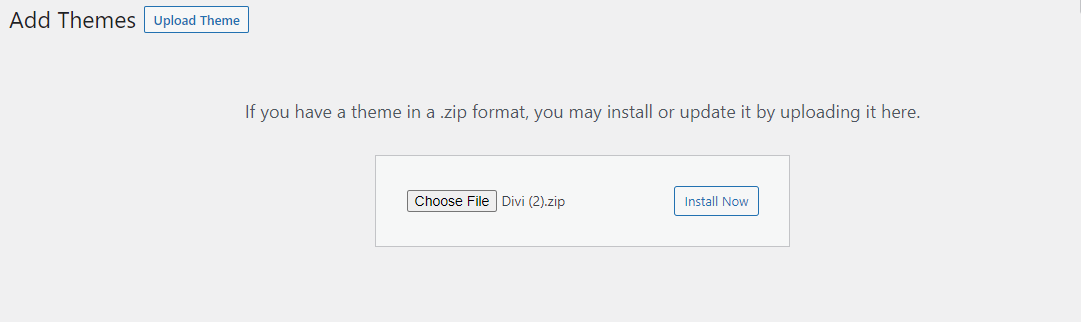
Once on the admin dashboard, go to Appearance >> Themes >> Add Themes >> Upload Theme.
In the next step, upload the Divi Theme ZIP file that you had downloaded from the Elegant Themes website. The installation of the theme will start automatically and usually takes less than a minute.
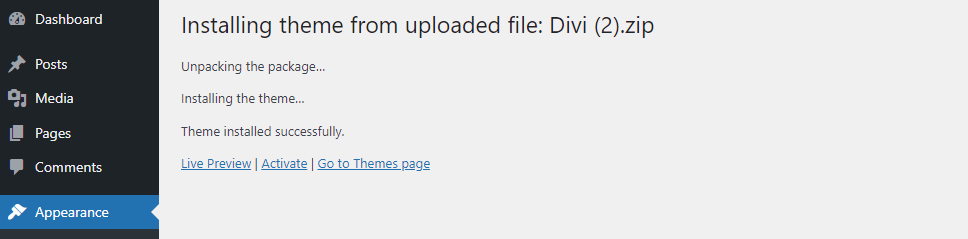
You will then be taken to a screen that looks like this:
Click on the “Activate” button to activate the Divi Theme on your WordPress website.
Step 3: Activate Divi License
The creators of Divi Theme, Elegant Themes, keep updating Divi Theme every now and then. The new version is always better than the previous one. To keep receiving new updates, you will need to activate the Divi License.
To activate the Divi License, you need a username and API Keys. You will get these from your Elegant Themes Member Area.
Go to Account >> API Keys.
Now, go to your WordPress Admin dashboard with the Divi Theme installed.
On the left bar, click on Divi >> Theme Options.
Click on the “Updates” tab. You will be taken to a screen that looks like this:
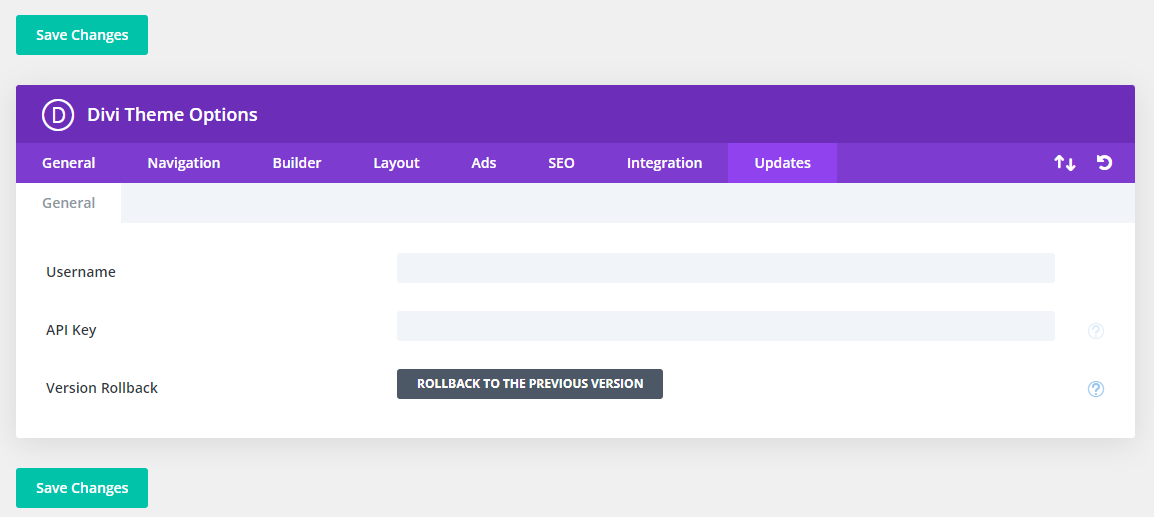
Copy and paste the Username and the API Keys from the Elegant Themes Member Area.
Click on “Save Changes” and that’s it.
You now have a Divi Theme installed, activated, and ready for use.
That’s it, start building beautiful pages with Divi Theme on your WordPress website.
If you are new to WordPress, check out our tutorial on How to Start WordPress Blog on Eco Web Hosting. You will get the insights to help you get started with WordPress.
Well, in a nutshell, you need to follow only three steps to start using Divi Theme on your WordPress website:
- Step 1: Download Divi Theme installation files from the Elegant Themes member area
- Step 2: Install Divi theme into your WordPress website.
- Step 3: Activate Divi Theme License
That’s all.
What’s your experience with the Divi theme? Please let us know in the comments section.

0 Comments