
Divi Child Themes and Layouts on SALE!! Shop Now →.
Divi Bio Link Layout
Getting Started
Before we begin, make sure you have Divi Theme installed on your WordPress website before importing this layout.
The Divi theme is not included in this package. To download Divi, you must have an Elegant Themes Membership. If you don’t have the membership, follow this link to acquire one.
Importing The Layout
Once you have downloaded the Divi Bio Link Layout zip file, unzip the file then locate the Divi Bio Link Layouts.JSON file.
Go to Divi>>Divi Library. Then at the top of the page, click on Import & Export. A new window will come up. Click on the Import tab, then choose the file Divi Bio Link Layouts.JSON file, then click on Import Divi Builder Layouts.
This process will import the page layout, save it to your Divi Library and make it available for your use.
To use a saved layout from Divi Library, create a new page, say Bio Link Page (Light Mode), then load the Light Mode Layout saved in the Divi Library.
Here is a video on how to load any page from Divi Library.
Create another page and repeat the process for the Dark Mode Page.
Once you have published the two pages, interlink them using the button at the top right corner. That is, add link to the dark mode page on the light mode page, and vice versa.
Activating The Email Optin Form
Integrate the email optin form with your email marketing service platform.
If you are using Mailerlite, here is how to integrate Mailerlite with Divi:
If you are a Mailchimp user, here is the guide:
Disable Header and Footer for the two pages
Create a Theme Builder template and assign it to specific pages where you want to hide the header or footer.
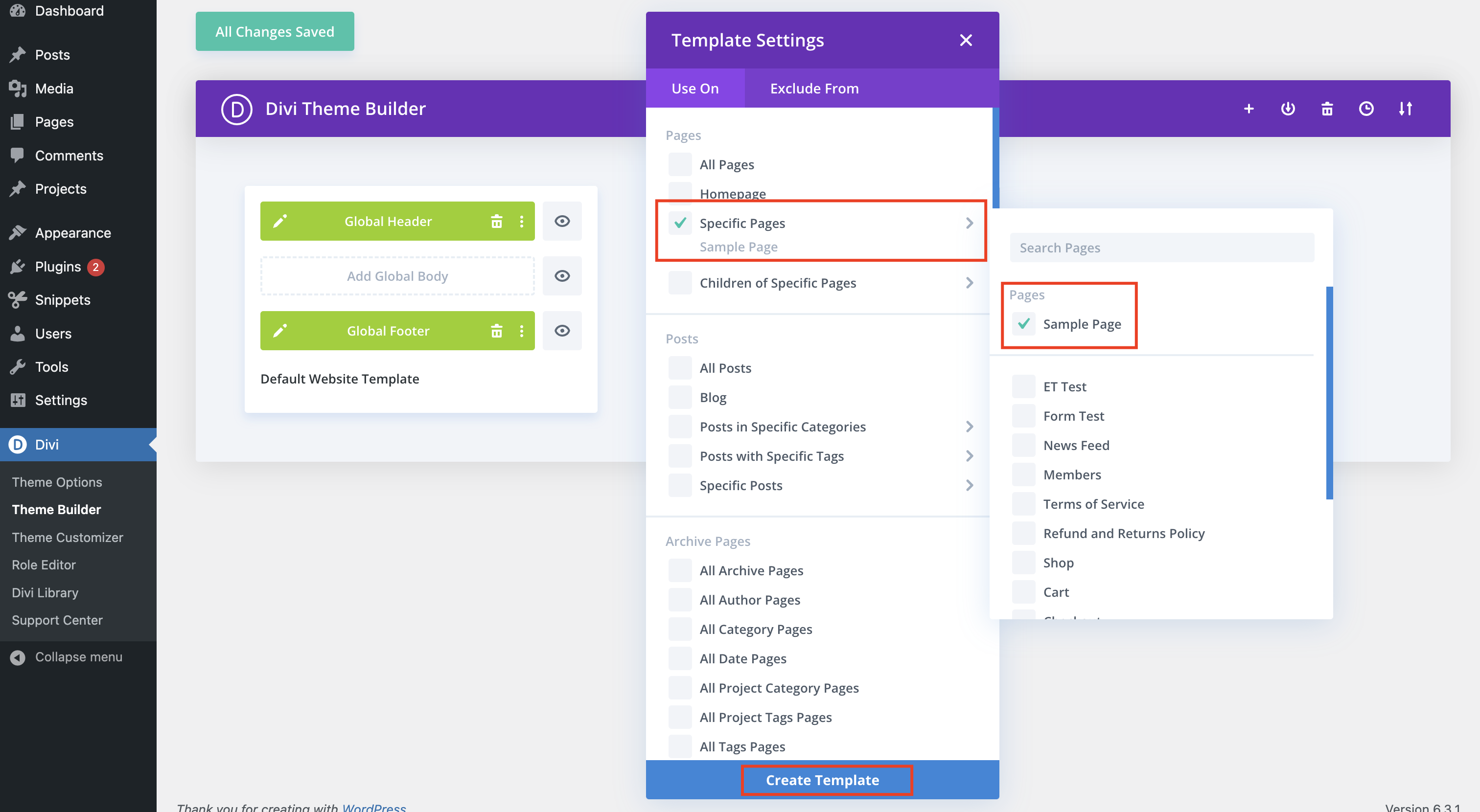
In the Specific Page template, click the eye icon for the header and footer to hide them.
If you still need help importing and customizing this layout, do not hesitate to contact us.