
Divi Child Themes and Layouts on SALE!! Shop Now →.
Smart Blog Layout
Getting Started
Before we begin, make sure you have Divi Theme installed on your WordPress website before importing this layout.
The Divi theme is not included in this package. To download Divi, you must have an Elegant Themes Membership. If you don’t have the membership, follow this link to acquire one.
Importing Smart Blog Layout
Once you have downloaded the Smart Blog Divi Layout, unzip the file then locate the .JSON file named Smart Blog Layout.json. This file can be imported onto a new page or an already existing page.
Imported layouts will replace your current page content with new content.
To import a Divi Builder Layout, click the portability icon within the Divi Builder to launch the portability system. Navigate to the Import tab. Click the “Choose File” button and locate your previously-downloaded file and click the “Import Divi Builder Layouts” button.
Customizing The Layout
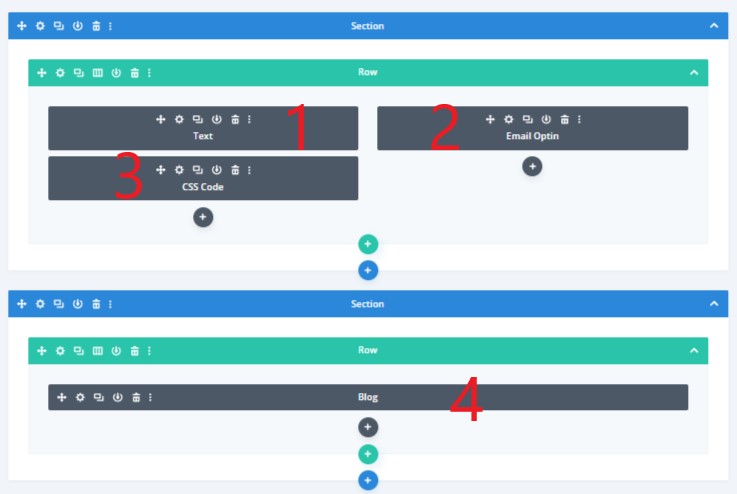
Smart Blog Layout is very simple and easy to use. There are only four (4) Divi modules to work with: Text, Email Optin, Blog, and CSS Code modules.
1. Text Module – Hero Text
You can change the text to anything you want.
2. Email Optin Module
To set up the email optin module, ensure that your preferred email marketing software is connected to your website.
Here is the documentation on how to work with the Divi Email Optin module: How to add, configure, and customize the Divi email optin module.
3. Code Module – The CSS Code
This code module contains all the CSS code used to customize this layout.
You can adjust the CSS code to your liking. For example, you can change the background color of the Read More button to a different one.
The CSS Code in this Code Module only applies in this particular layout. It won’t affect other pages of your website.
4. Blog Module
Here, you can adjust the number of posts to show on each page. On this layout, we are displaying four posts per page.
You can change the font style, text size, color, and just anything from the Blog module settings.
The CSS code used to customize the blog module is in the Divi Module labeled CSS Code.
To be able to have a great view of all these modules, you will need to change the page builder to a wireframe view.
Importing Smart Blog Footer
Once you have downloaded the Smart Blog Divi Layout, unzip the file then locate the .JSON file named Smart Blog Footer.json.
Go to Divi >> Divi Library. Then, click on the Import & Export link at the top left.
Navigate to the Import tab. Click the “Choose File” button and locate your Smart Blog Footer.Json file and click the “Import Divi Builder Layouts” button.
Setting Smart Blog Footer As Global Footer
To be able to use the Smart Blog Footer Layout as your website’s footer, you will need to set it up from the Divi Theme Builder section.
Go to Divi >> Theme Builder >> Add Global Footer >> Add From Library.
Then, click on the tab, Your Saved Layouts, then locate Smart Blog Layout. Click on it, then Save Changes.
That’s it, you will be having a new footer for your website.
If you still need help importing and customizing this layout, do not hesitate to contact us.