
Divi Child Themes and Layouts on SALE!! Shop Now →.
Food Blogger Layout
Getting Started
Before we begin, make sure you have Divi Theme installed on your WordPress website before importing this layout.
The Divi theme is not included in this package. To download Divi, you must have an Elegant Themes Membership. If you don’t have the membership, follow this link to acquire one.
Then, you will need to create a new custom widget and name it widget1 (no spaces).
Navigate to Appearance >> Widgets, enter widget name then click create.
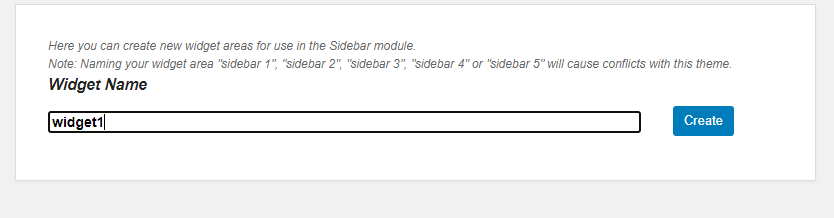
Reload the page to be able to see the newly created widget.
Populate widget1 area with Recent Posts.
Next, create another custom widget and name it widget2 (no spaces).
Reload the page to be able to see the newly created widget.
Populate widget1 area with Categories. Check the box to show post counts then click on Save.
Importing Food Blogger Layout
Once you have downloaded the Food Blogger Layout zip file, unzip the file then locate the .JSON file named Food Blogger Layout.json.
This file can be imported onto a new page. Imported layouts will replace your current page content with the exported content.
To import a Divi Builder Layout, click the portability icon within the Divi Builder to launch the portability system. Navigate to the Import tab. Click the “Choose File” button and locate your previously-downloaded file and click the “Import Divi Builder Layouts button.”
Customizing The Layout
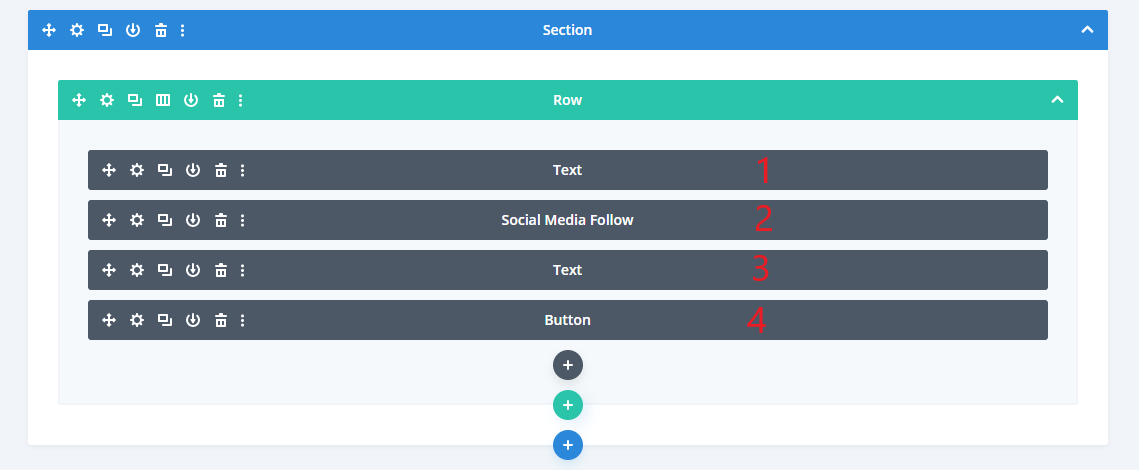
1. Text Module – Hero Text
You can change the text to anything you want.
2. Social Media Follow Module
Add/remove some of the social media follow buttons.
Also, insert the appropriate links to each button.
3. Text Module
This text is meant to introduce the Subscribe button. You can change it to anything you want.
4. Button Module – Subscribe
This button has been designed to help users navigate easily to the Email optin form that’s on the sidebar of the layout.
To make it work for you, you will need to change the Button Link URL to yourblog.com/page/#subscribe
For example, in the demo, the link is https://demo.divibanks.com/layout/food-blogger/#subscribe
Ensure that you maintain the #subscribe part of the URL because it has already been taken care of in the CSS Class of the Email Optin module advanced settings.
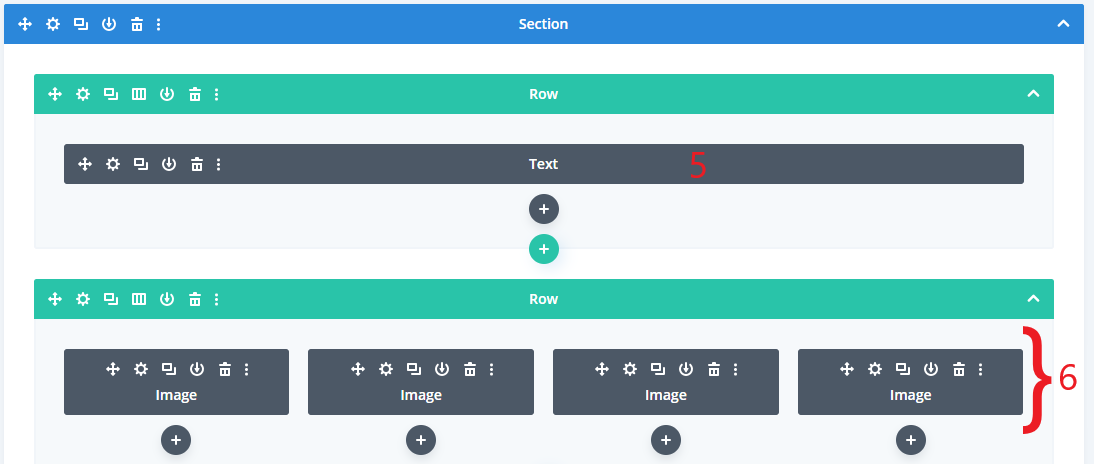
5. Text Module – As Seen in…
This text is meant to introduce the section with logos of companies your website has been featured on. You can change it to anything you want.
6. Image Modules
The four images are to show the logos of companies your website has been featured on.
The four-column rows display as two-column rows on mobile. The CSS code that has been used to make this possible is in the CSS Code module.